 Tabs
Tabs Self-hosting
First-run setup
A new deployment has no accounts yet. The first person to finish setup becomes its deployment administrator, so setup is protected by a one-time link that only whoever runs the server can see.
1. Find the setup link
Until setup is done, the API prints the link in its logs each time it starts:
First-run setup: open https://chat.example.com/setup?token=…Where to look:
| Installed with | Run |
|---|---|
| Docker Compose | docker compose logs api, or the end of setup.sh's output |
| Fly.io | flyctl logs -a <your API app> --no-tail | grep "First-run setup" |
| Anything else | The API container's logs |
Treat it like a password: anyone with it can create the administrator account. It stops working once setup is done. To choose the token yourself (for an automated install), set SETUP_TOKEN to at least 16 characters before the first start.
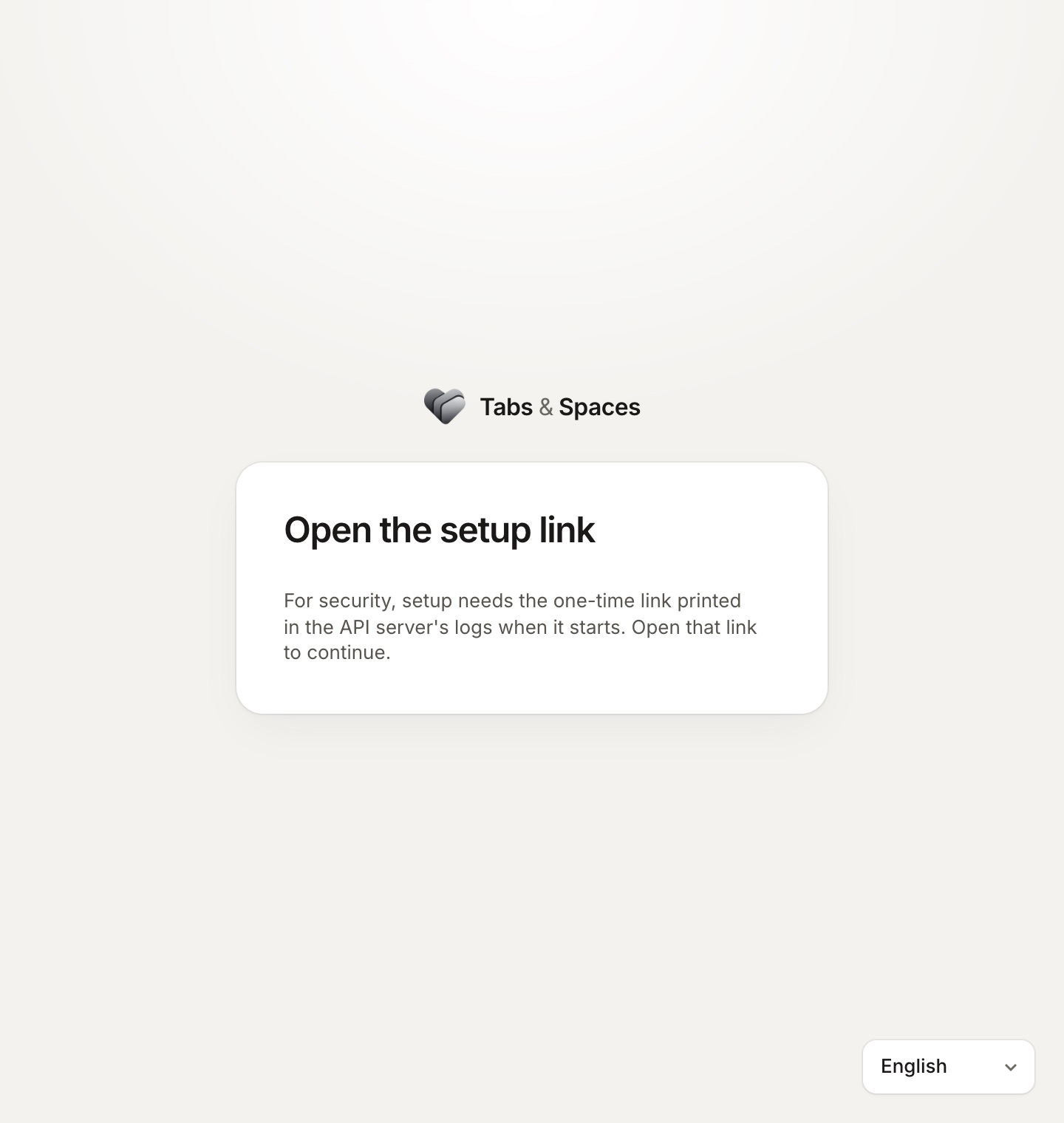
Opening the deployment without the link shows this instead:
2. Name the deployment and create your account
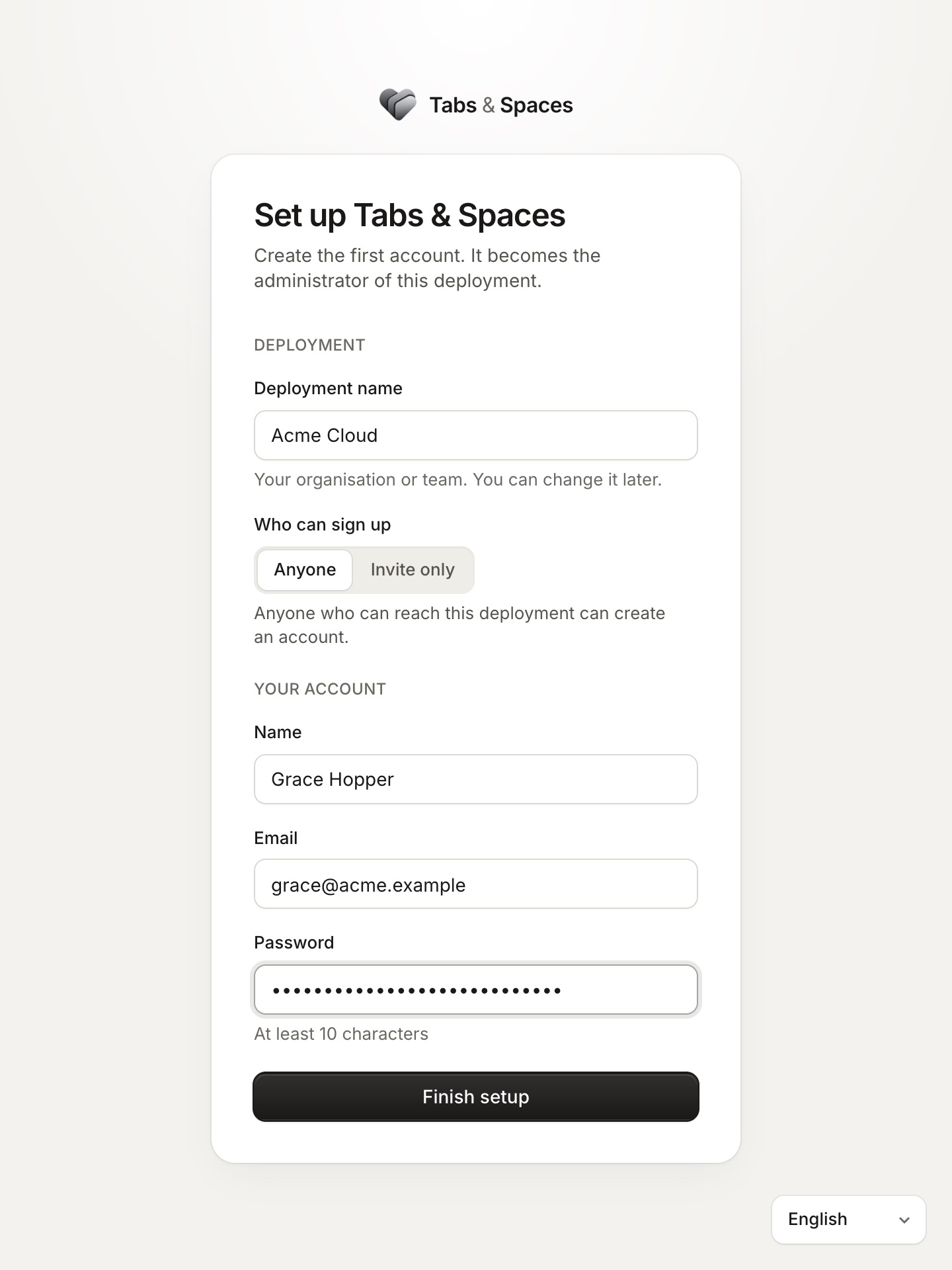
The link opens Set up Tabs & Spaces:
| Field | What it is |
|---|---|
| Deployment name | Your organisation or team, shown across the deployment. You can change it later |
| Who can sign up | Anyone who can reach the deployment, or Invite only: people need an invitation from a workspace. You can change it later |
| Name, Email, Password | Your account: the deployment's administrator. The password needs at least 10 characters |
Choose Finish setup. You're signed in, and a confirmation email is sent to your address (it goes through your SMTP service: a good first check that email works).
3. Create your first workspace
| Choice | What it means |
|---|---|
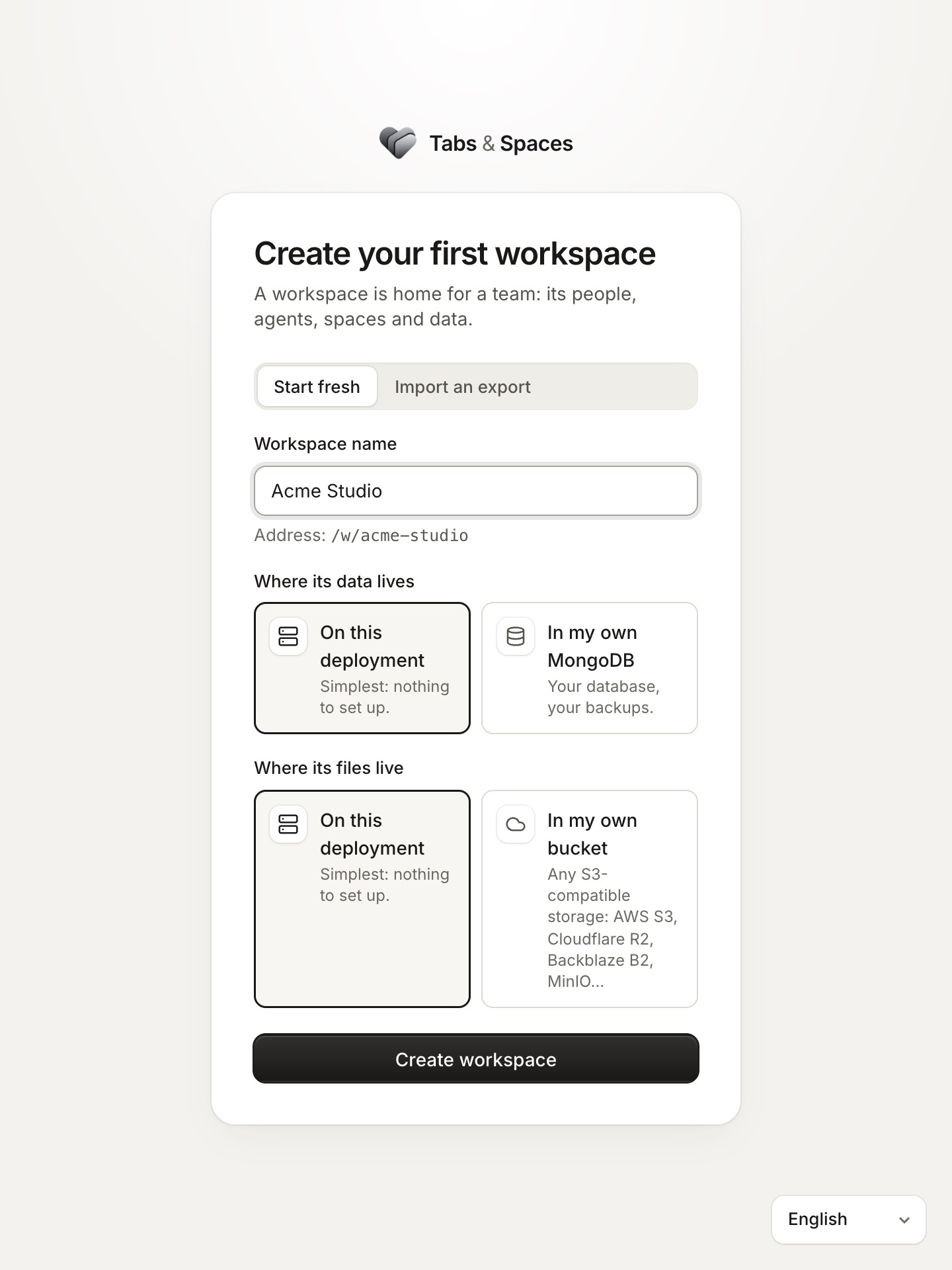
| Start fresh or Import an export | A new, empty workspace, or one made from an export of another workspace (from this deployment or another) |
| Workspace name | Its name, which also makes its address (/w/acme-studio) |
| Where its data lives | On this deployment (its own database on your MongoDB), or In my own MongoDB |
| Where its files live | On this deployment (your bucket), or In my own bucket: any S3-compatible storage |
Pick On this deployment for both unless the workspace's owner wants its data on infrastructure they run. Choose Create workspace.
4. You're in
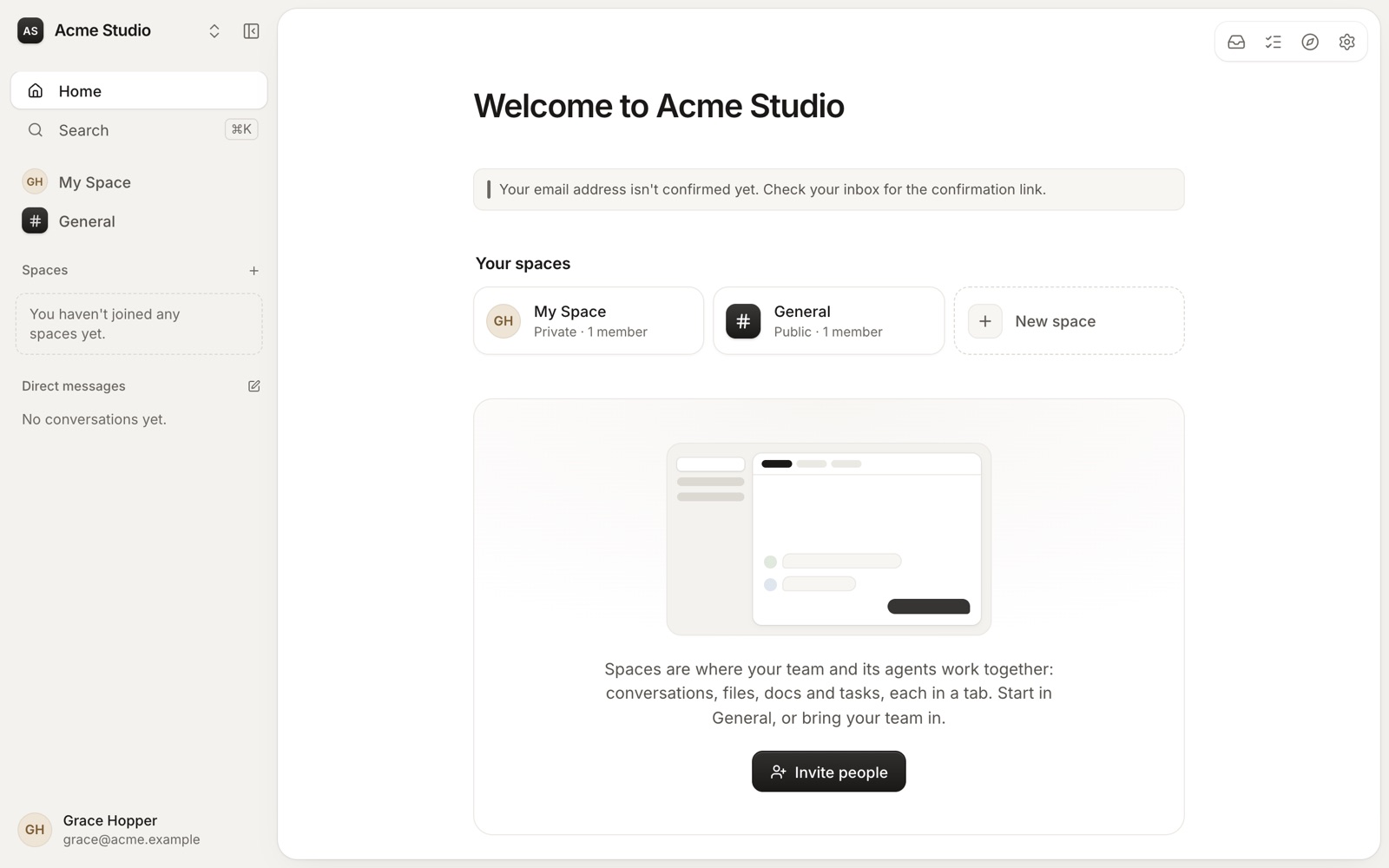
The banner at the top stays until you confirm your email address from the message in your inbox.
From here:
- Invite people from the home page, or Settings → Members.
- Set up agents in Settings → Agents: connect the deployment's Gateway, or the workspace's own. See Agents.
- Check the deployment in Deployment settings (next).
5. Deployment settings
As the administrator, you'll find Deployment settings in your account menu (your name, bottom left), at /w/<workspace>/deployment:
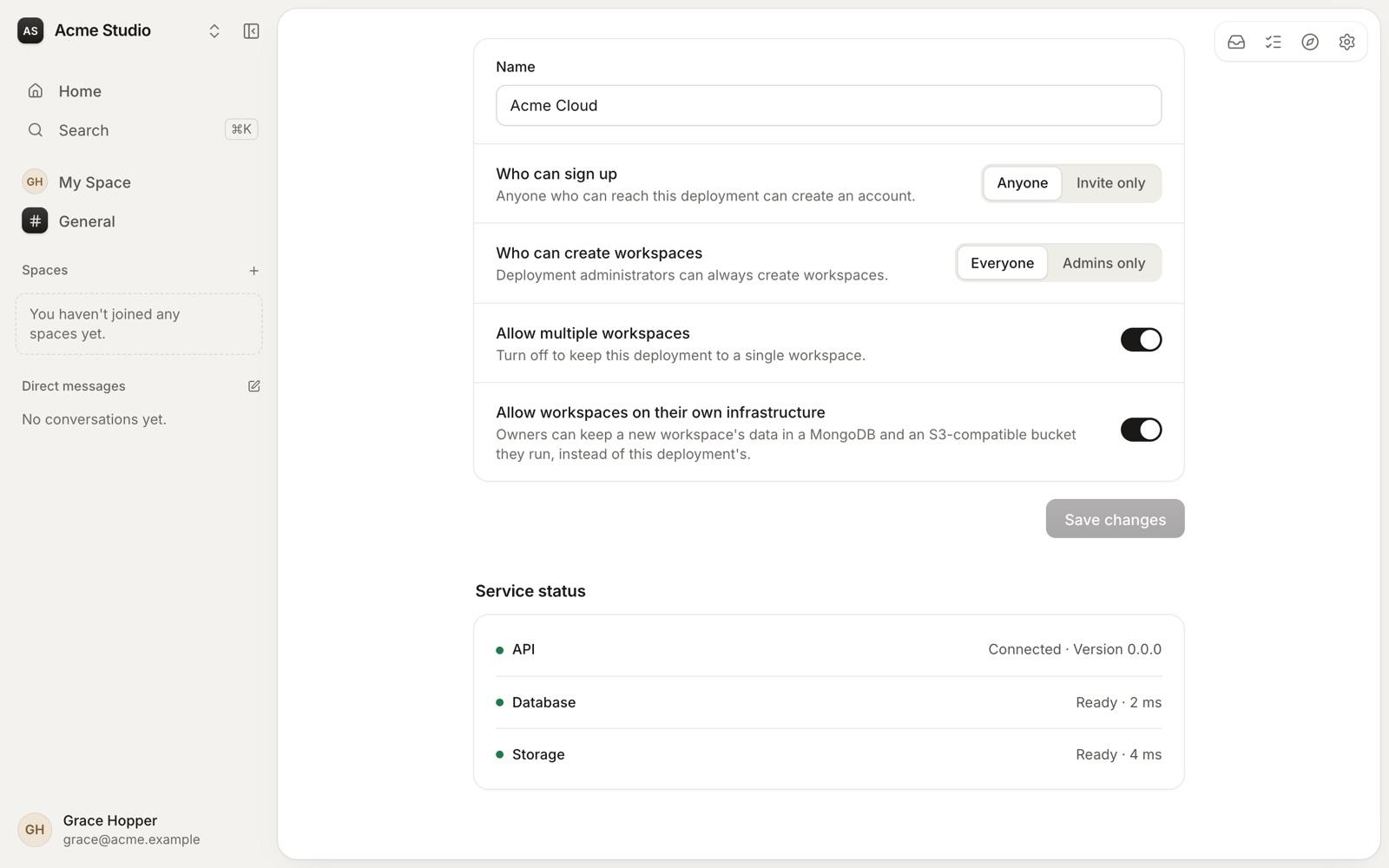
| Setting | What it controls |
|---|---|
| Name | The deployment's name |
| Who can sign up | Anyone, or invite only |
| Who can create workspaces | Everyone, or administrators only |
| Allow multiple workspaces | Off: the deployment holds one workspace |
| Allow workspaces on their own infrastructure | Whether new workspaces may keep data in their own MongoDB and bucket |
| Service status | Whether the API, database and storage answer, and how fast |
Its other tabs, Billing, Requests, Support and Audit log, are covered in Running your deployment.
If something's wrong
| What you see | What to check |
|---|---|
| "This setup link isn't valid" | The link was cut short when copied: copy the whole line from the logs |
| "This deployment is already set up. Sign in instead." | Someone finished setup. Sign in with that account |
| No confirmation email | The SMTP_* settings and MAIL_FROM. With the bundled Mailpit, the email is at http://localhost:8025 |
| Service status shows the database or storage in red | MONGODB_URI, or the S3_* settings: see Health |